> ## Documentation Index
> Fetch the complete documentation index at: https://danswer-docs-versions-opensearch-example.mintlify.site/llms.txt
> Use this file to discover all available pages before exploring further.
# Language Model Access Controls
> Configure access controls for language model providers
## Overview
Onyx provides fine-grained access control for language model providers,
allowing administrators to control **who** can use specific models and **which agents** can use them.
This enables better cost control, governance, and enforcement of model usage policies.
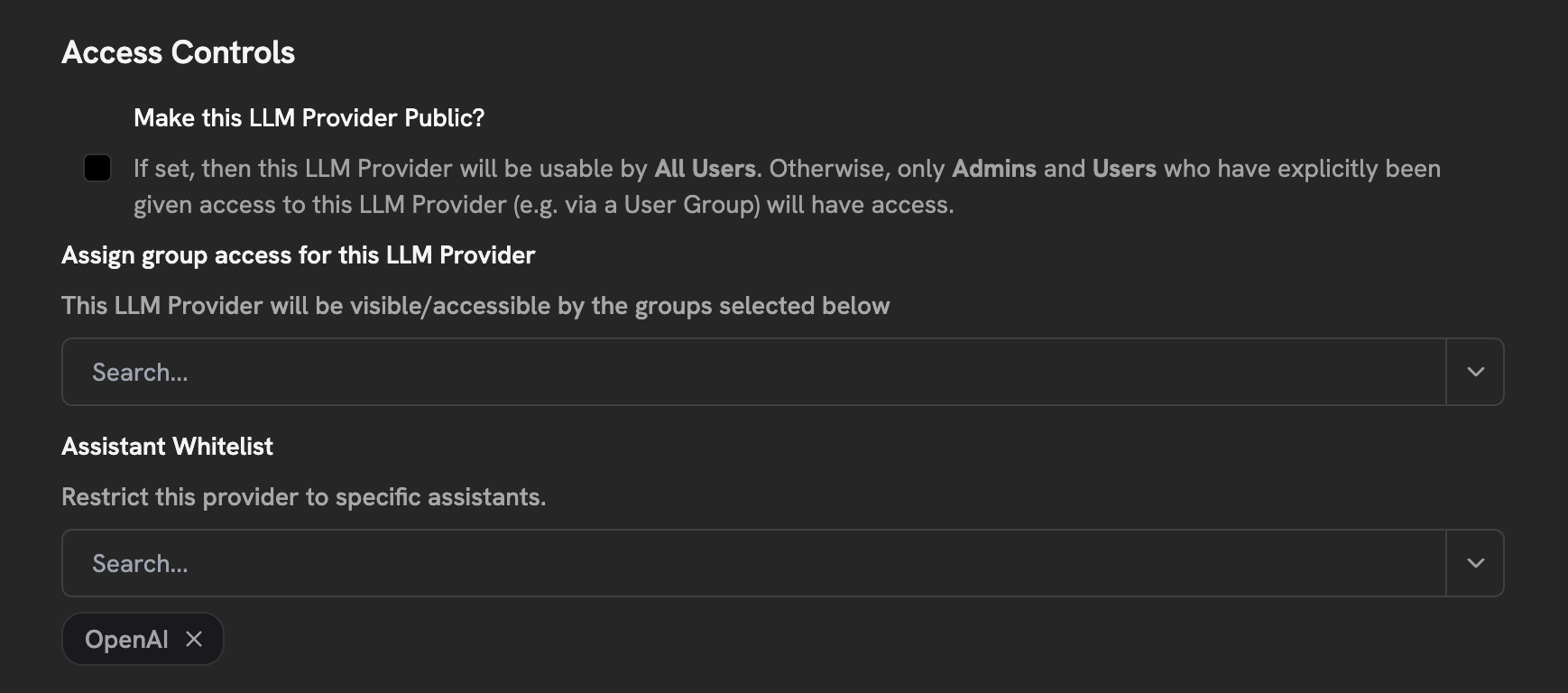 ### Access Control Types
**Public Providers**
* Accessible to all users and agents
* No restrictions applied
* Useful for default, unrestricted models
**Private Providers**
* Subject to user group and/or agent restrictions
* Enables fine-grained access control
* Recommended for expensive or specialized models
Control **who** can use specific language model providers by restricting access to specific user groups.
**How it works:**
* Assign one or more user groups to a provider
* Only users in those groups can use the provider
* Admins bypass group restrictions (but not agent restrictions)
* Leave empty for no group restrictions
**Use cases:**
* Restrict expensive models to specific teams
* Provide specialized models to certain departments
* Implement cost controls by team
Control **which agents** can use specific language model providers.
**How it works:**
* Assign one or more agents to a provider via the "Agent Whitelist"
* The provider will only appear as an option when using those agents
* Applies to **all users**, including admins
* Leave empty for no agent restrictions
**Use cases:**
* Reserve GPT-4 for "Code Review Agent" only
* Use Claude Opus exclusively with "Legal Document Analyzer"
* Prevent users from selecting inappropriate models for specific use cases
* Enforce model policies per agent type
You can combine both user group and agent restrictions for maximum control.
**Access Rules (AND logic):**
* User must be in an allowed group **AND** using an allowed agent
* Both conditions must be satisfied for access
* Admins bypass group restrictions but still require allowed agents
**Example:**
* Provider: GPT-4
* User Groups: "Engineering Team"
* Agent Whitelist: "Code Review Agent", "Architecture Advisor"
* **Result:** Only Engineering Team members can use GPT-4, and only with those two agents
### Configuring Access Controls
To configure access controls for a language model provider:
Navigate to **Admin Panel → Configuration → Language Models**
Click on an existing provider or create a new one
In the **Access Controls** section nested under Advanced options:
* Toggle **Make Public** off to enable restrictions
* Select user groups in **User Group Access** (optional)
* Select agents in **Agent Whitelist** (optional)
Save your changes
When a provider is set to public, the access control selectors are automatically disabled.
### Access Decision Logic
The system determines access based on the following logic:
| is\_public | Groups Set | Agents Set | Access Rule |
| - | - | - | - |
| `true` | Any | Any | Everyone has access |
| `false` | Yes | Yes | Must be in group **AND** using allowed agent |
| `false` | Yes | No | Must be in group (admins bypass) |
| `false` | No | Yes | Must use allowed agent (applies to admins) |
| `false` | No | No | Admin-only access |
### Provider Visibility
Users will only see the language model providers they have access to:
* In the agent creation/editing interface
* In the chat UI model selector
* When using the API to list available providers
Restricted providers are completely hidden from users who don't have access,
preventing confusion and unauthorized usage attempts.
This documentation is built and hosted on [Mintlify](https://mintlify.com), a developer documentation platform.
### Access Control Types
**Public Providers**
* Accessible to all users and agents
* No restrictions applied
* Useful for default, unrestricted models
**Private Providers**
* Subject to user group and/or agent restrictions
* Enables fine-grained access control
* Recommended for expensive or specialized models
Control **who** can use specific language model providers by restricting access to specific user groups.
**How it works:**
* Assign one or more user groups to a provider
* Only users in those groups can use the provider
* Admins bypass group restrictions (but not agent restrictions)
* Leave empty for no group restrictions
**Use cases:**
* Restrict expensive models to specific teams
* Provide specialized models to certain departments
* Implement cost controls by team
Control **which agents** can use specific language model providers.
**How it works:**
* Assign one or more agents to a provider via the "Agent Whitelist"
* The provider will only appear as an option when using those agents
* Applies to **all users**, including admins
* Leave empty for no agent restrictions
**Use cases:**
* Reserve GPT-4 for "Code Review Agent" only
* Use Claude Opus exclusively with "Legal Document Analyzer"
* Prevent users from selecting inappropriate models for specific use cases
* Enforce model policies per agent type
You can combine both user group and agent restrictions for maximum control.
**Access Rules (AND logic):**
* User must be in an allowed group **AND** using an allowed agent
* Both conditions must be satisfied for access
* Admins bypass group restrictions but still require allowed agents
**Example:**
* Provider: GPT-4
* User Groups: "Engineering Team"
* Agent Whitelist: "Code Review Agent", "Architecture Advisor"
* **Result:** Only Engineering Team members can use GPT-4, and only with those two agents
### Configuring Access Controls
To configure access controls for a language model provider:
Navigate to **Admin Panel → Configuration → Language Models**
Click on an existing provider or create a new one
In the **Access Controls** section nested under Advanced options:
* Toggle **Make Public** off to enable restrictions
* Select user groups in **User Group Access** (optional)
* Select agents in **Agent Whitelist** (optional)
Save your changes
When a provider is set to public, the access control selectors are automatically disabled.
### Access Decision Logic
The system determines access based on the following logic:
| is\_public | Groups Set | Agents Set | Access Rule |
| - | - | - | - |
| `true` | Any | Any | Everyone has access |
| `false` | Yes | Yes | Must be in group **AND** using allowed agent |
| `false` | Yes | No | Must be in group (admins bypass) |
| `false` | No | Yes | Must use allowed agent (applies to admins) |
| `false` | No | No | Admin-only access |
### Provider Visibility
Users will only see the language model providers they have access to:
* In the agent creation/editing interface
* In the chat UI model selector
* When using the API to list available providers
Restricted providers are completely hidden from users who don't have access,
preventing confusion and unauthorized usage attempts.
This documentation is built and hosted on [Mintlify](https://mintlify.com), a developer documentation platform.