> ## Documentation Index
> Fetch the complete documentation index at: https://danswer-docs-versions-opensearch-example.mintlify.site/llms.txt
> Use this file to discover all available pages before exploring further.
# Google Vertex AI
> Configure Google Vertex AI language models for use with Onyx
## Guide
This guide walks through setting up Google Vertex AI language models for use with Onyx.
Google Vertex AI and Google AI Studio serve the same models. However,
Vertex AI has enterprise-grade features that may be useful for your organization.
## Authentication Methods
Onyx supports two authentication methods for Google Vertex AI:
* **Service Account JSON** — upload a downloaded service account key file. This works with Onyx deployed
inside or outside Google Cloud and is the default flow covered in the guide below.
* **Workload Identity (GKE)** — authenticate using your GKE cluster's ambient credentials, with no key file
to generate or store. See [Workload Identity (GKE)](#workload-identity-gke) below.
A standalone Vertex AI API key (sometimes called a Vertex Express Mode key) is **not** supported.
Onyx's Vertex AI provider only accepts a Service Account JSON credential or Workload Identity — see the [FAQ](#faq)
below for details and an alternative.
## Service Account JSON
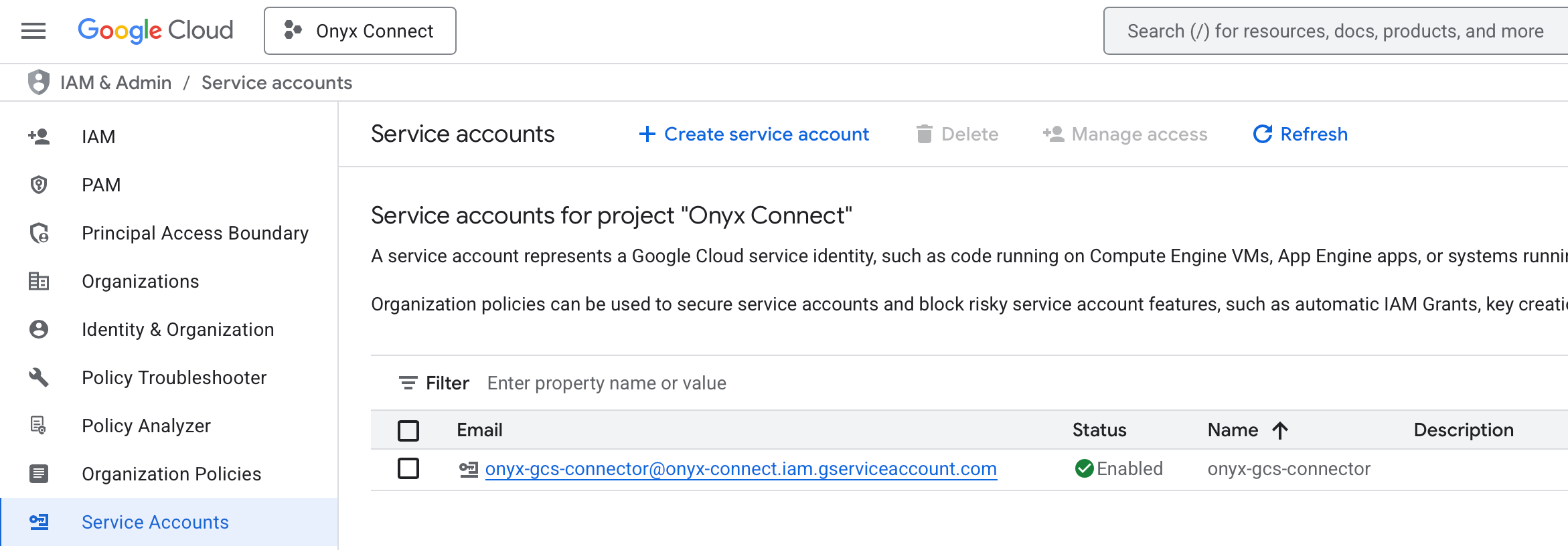
Go to the [Google Cloud Console Service Accounts Page](https://console.cloud.google.com/iam-admin/serviceaccounts)
Select your project and click **Create Service Account**.
Give your Service Account a name and a description.
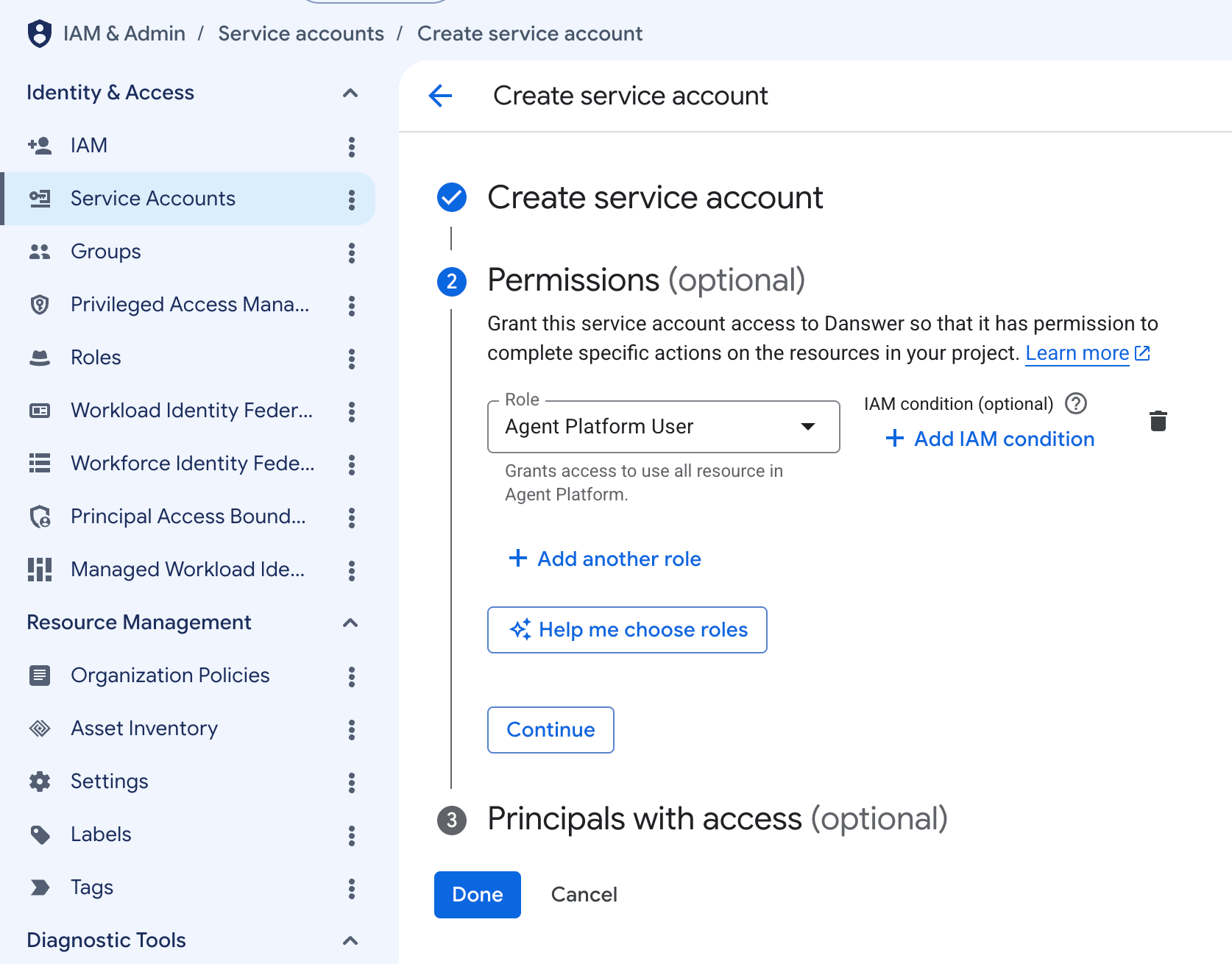
On the **Permissions** tab, grant the service account the **Agent Platform User** role.
 Click your newly created Service Account → **Keys** → **Add Key** → **Create new key**.
Select **JSON** as the key type and click **Create**. The key will be automatically downloaded to your computer.
Access the Admin Panel from your user profile icon, then navigate to **Configuration → Language Models**.
Select **Google Cloud Vertex AI** from the available providers.
Give this configuration a **Display Name**.
For the **Authentication Method**,
select **Service Account JSON** and upload your JSON key to the **Credentials File** field.
If relevant, specify a **Location**.
In the **Advanced Options**, you will see a list of all models available from this provider.
You may choose which models are visible to your users in Onyx.
Setting visible models is useful when a provider publishes multiple models and versions of the same model.
Lastly, decide whether the provider should be public to all users in Onyx.
If set to private,
the provider's models will be available to Admins and User Groups you explicitly assign the provider to.
## Workload Identity (GKE)
For Onyx deployed on GKE,
you can authenticate to Vertex AI using [GKE Workload Identity
Federation](https://cloud.google.com/kubernetes-engine/docs/how-to/workload-identity). With this method,
Onyx picks up the pod's ambient GCP credentials automatically (via Google's [Application Default
Credentials](https://cloud.google.com/docs/authentication/application-default-credentials))
and no key file is ever created or stored.
### Prerequisites
* Onyx is already deployed on GKE.
* Billing is enabled in the project where you will use Vertex AI.
* For the CLI examples, authenticate the [Google Cloud CLI](https://cloud.google.com/sdk/docs/install)
and configure [`kubectl`](https://kubernetes.io/docs/tasks/tools/) for your Onyx cluster.
The deployment administrator needs permission to enable APIs and grant IAM roles;
cluster or Kubernetes service account permissions are only needed when changing those settings.
The first two steps are one-time deployment setup.
If your Onyx pods already use Workload Identity and have Vertex AI access,
continue to **Navigate to Language Models**.
The Service Account JSON method above does not require these Kubernetes changes.
**Autopilot:** Workload Identity Federation for GKE is already enabled.
**Standard:** Open the [GKE clusters page](https://console.cloud.google.com/kubernetes/list), select your cluster,
and open **Details → Security**. **Workload Identity** must show **Enabled**,
with the namespace `PROJECT_ID.svc.id.goog` using your GKE project's ID.
Click your newly created Service Account → **Keys** → **Add Key** → **Create new key**.
Select **JSON** as the key type and click **Create**. The key will be automatically downloaded to your computer.
Access the Admin Panel from your user profile icon, then navigate to **Configuration → Language Models**.
Select **Google Cloud Vertex AI** from the available providers.
Give this configuration a **Display Name**.
For the **Authentication Method**,
select **Service Account JSON** and upload your JSON key to the **Credentials File** field.
If relevant, specify a **Location**.
In the **Advanced Options**, you will see a list of all models available from this provider.
You may choose which models are visible to your users in Onyx.
Setting visible models is useful when a provider publishes multiple models and versions of the same model.
Lastly, decide whether the provider should be public to all users in Onyx.
If set to private,
the provider's models will be available to Admins and User Groups you explicitly assign the provider to.
## Workload Identity (GKE)
For Onyx deployed on GKE,
you can authenticate to Vertex AI using [GKE Workload Identity
Federation](https://cloud.google.com/kubernetes-engine/docs/how-to/workload-identity). With this method,
Onyx picks up the pod's ambient GCP credentials automatically (via Google's [Application Default
Credentials](https://cloud.google.com/docs/authentication/application-default-credentials))
and no key file is ever created or stored.
### Prerequisites
* Onyx is already deployed on GKE.
* Billing is enabled in the project where you will use Vertex AI.
* For the CLI examples, authenticate the [Google Cloud CLI](https://cloud.google.com/sdk/docs/install)
and configure [`kubectl`](https://kubernetes.io/docs/tasks/tools/) for your Onyx cluster.
The deployment administrator needs permission to enable APIs and grant IAM roles;
cluster or Kubernetes service account permissions are only needed when changing those settings.
The first two steps are one-time deployment setup.
If your Onyx pods already use Workload Identity and have Vertex AI access,
continue to **Navigate to Language Models**.
The Service Account JSON method above does not require these Kubernetes changes.
**Autopilot:** Workload Identity Federation for GKE is already enabled.
**Standard:** Open the [GKE clusters page](https://console.cloud.google.com/kubernetes/list), select your cluster,
and open **Details → Security**. **Workload Identity** must show **Enabled**,
with the namespace `PROJECT_ID.svc.id.goog` using your GKE project's ID.
 For Standard clusters, under **Nodes**, open each node pool that runs Onyx.
Its **Security → GKE Metadata Server** must also show **Enabled**.
For Standard clusters, under **Nodes**, open each node pool that runs Onyx.
Its **Security → GKE Metadata Server** must also show **Enabled**.
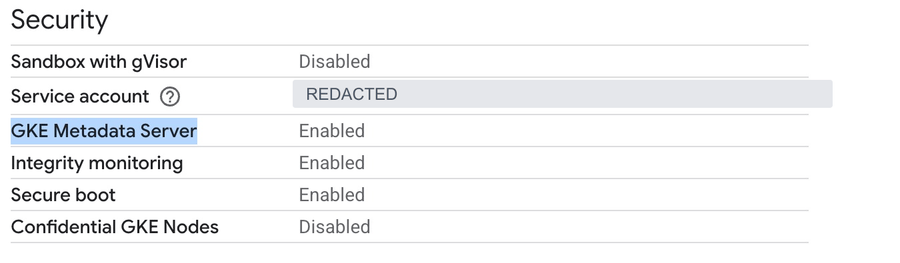 In **Details → Security**, edit **Workload Identity**, select **Enable Workload Identity**, and save.
For each Onyx node pool, click **Edit → Security**, select **Enable GKE Metadata Server**, and save.
Enabling Workload Identity on the cluster does not enable it on existing node pools.
The equivalent commands are:
```bash theme={null}
export GKE_PROJECT_ID="my-project"
export CLUSTER_NAME="my-onyx-cluster"
export CLUSTER_LOCATION="us-central1"
gcloud container clusters update "$CLUSTER_NAME" \
--location "$CLUSTER_LOCATION" --project "$GKE_PROJECT_ID" \
--workload-pool "${GKE_PROJECT_ID}.svc.id.goog"
gcloud container node-pools update NODE_POOL_NAME \
--cluster "$CLUSTER_NAME" --location "$CLUSTER_LOCATION" \
--project "$GKE_PROJECT_ID" --workload-metadata GKE_METADATA
```
Use the cluster's region for a regional cluster or its zone for a zonal cluster.
Replace `NODE_POOL_NAME` and repeat for every node pool that runs Onyx.
Updating a node pool changes how all its workloads obtain Google Cloud credentials.
Review workloads that rely on the node's service account before changing the pool,
or move Onyx to a new pool with Workload Identity enabled.
Enable the [Vertex AI API](https://console.cloud.google.com/apis/library/aiplatform.googleapis.com)
in the project where you will use the models.
Use the Kubernetes service account already assigned to the Onyx API server and any workers that call models.
To find it, replace `onyx` with your namespace:
```bash theme={null}
kubectl get pods --namespace onyx \
-o custom-columns=NAME:.metadata.name,SERVICE_ACCOUNT:.spec.serviceAccountName
```
Grant [**Agent Platform
User**](https://cloud.google.com/iam/docs/roles-permissions/aiplatform#roles_aiplatform.user)
(`roles/aiplatform.user`, formerly **Vertex AI User**)
in the Vertex AI project to that account's [Workload Identity
principal](https://cloud.google.com/kubernetes-engine/docs/how-to/workload-identity#configure_authorization_and_principals).
This grants access directly to the pod identity, without creating a Google Cloud service account or JSON key.
If the Kubernetes account is already linked to a Google Cloud service account,
grant the role to that Google Cloud account instead and keep the existing link.
Repeat the grant for each distinct identity used by the API server and workers.
Replace these example values. `GKE_PROJECT_ID` identifies the cluster's project;
`VERTEX_PROJECT_ID` identifies the project where Vertex AI is enabled. They can be the same.
The Helm chart uses the `default` Kubernetes service account when `serviceAccount.create` is `false` and
`serviceAccount.name` is empty; use the account shown on your running pods.
```bash theme={null}
export GKE_PROJECT_ID="my-project"
export VERTEX_PROJECT_ID="$GKE_PROJECT_ID"
export NAMESPACE="onyx"
export KSA_NAME="default"
export GKE_PROJECT_NUMBER="$(gcloud projects describe "$GKE_PROJECT_ID" --format='value(projectNumber)')"
export WORKLOAD_POOL="projects/${GKE_PROJECT_NUMBER}/locations/global/workloadIdentityPools/${GKE_PROJECT_ID}.svc.id.goog"
export KSA_PRINCIPAL="principal://iam.googleapis.com/${WORKLOAD_POOL}/subject/ns/${NAMESPACE}/sa/${KSA_NAME}"
gcloud services enable aiplatform.googleapis.com --project "$VERTEX_PROJECT_ID"
gcloud projects add-iam-policy-binding "$VERTEX_PROJECT_ID" \
--member "$KSA_PRINCIPAL" \
--role roles/aiplatform.user --condition=None
```
Service account impersonation is another supported setup.
Use this if your deployment already uses a linked Google Cloud service account, or your organization requires one.
The binding and annotation below are required for impersonation; they are not needed for direct access.
Check for an existing link:
```bash theme={null}
kubectl get serviceaccount KSA_NAME --namespace NAMESPACE \
-o jsonpath='{.metadata.annotations.iam\.gke\.io/gcp-service-account}'
```
Replace `KSA_NAME` and `NAMESPACE`. If an email is returned, reuse that account rather than replacing its link.
Otherwise, open the [Service Accounts page](https://console.cloud.google.com/iam-admin/serviceaccounts)
and create an account named `onyx-vertex-ai`, without creating a JSON key.
Set the values below to your deployment. For an existing account,
set `GSA_EMAIL` to the returned email and `GSA_PROJECT_ID` to the project that owns that account.
```bash theme={null}
export GKE_PROJECT_ID="my-project"
export VERTEX_PROJECT_ID="$GKE_PROJECT_ID"
export GSA_PROJECT_ID="$GKE_PROJECT_ID"
export GSA_EMAIL="onyx-vertex-ai@${GSA_PROJECT_ID}.iam.gserviceaccount.com"
export NAMESPACE="onyx"
export KSA_NAME="default"
gcloud services enable aiplatform.googleapis.com --project "$VERTEX_PROJECT_ID"
gcloud services enable iamcredentials.googleapis.com --project "$GSA_PROJECT_ID"
gcloud projects add-iam-policy-binding "$VERTEX_PROJECT_ID" \
--member "serviceAccount:${GSA_EMAIL}" \
--role roles/aiplatform.user --condition=None
gcloud iam service-accounts add-iam-policy-binding "$GSA_EMAIL" \
--project "$GSA_PROJECT_ID" --role roles/iam.workloadIdentityUser \
--member "serviceAccount:${GKE_PROJECT_ID}.svc.id.goog[${NAMESPACE}/${KSA_NAME}]"
kubectl annotate serviceaccount "$KSA_NAME" --namespace "$NAMESPACE" \
"iam.gke.io/gcp-service-account=${GSA_EMAIL}" --overwrite
```
Both the IAM binding and Kubernetes annotation are required for this method.
Repeat them for distinct Kubernetes accounts used by the API server and workers.
The Google Cloud account also needs permissions for other Google Cloud services those pods use,
such as Cloud Storage. The node pool's service account is a separate node identity.
If Helm creates the Kubernetes account, preserve the annotation in your Helm values:
```yaml theme={null}
serviceAccount:
create: true
name: onyx
annotations:
iam.gke.io/gcp-service-account: onyx-vertex-ai@my-project.iam.gserviceaccount.com
```
For this example, use `KSA_NAME="onyx"` in the binding. If you change the account assigned to pods,
apply the Helm values and roll out the API server and workers.
Standard cluster pods must run on node pools with the GKE Metadata Server enabled.
See Google's [service account linking
guide](https://cloud.google.com/kubernetes-engine/docs/how-to/workload-identity#kubernetes-sa-to-iam).
Access the Admin Panel from your user profile icon, then navigate to **Configuration → Language Models**.
Select **Google Cloud Vertex AI** from the available providers.
Give this configuration a **Display Name**.
For the **Authentication Method**, select **Workload Identity (GKE)**.
In **Details → Security**, edit **Workload Identity**, select **Enable Workload Identity**, and save.
For each Onyx node pool, click **Edit → Security**, select **Enable GKE Metadata Server**, and save.
Enabling Workload Identity on the cluster does not enable it on existing node pools.
The equivalent commands are:
```bash theme={null}
export GKE_PROJECT_ID="my-project"
export CLUSTER_NAME="my-onyx-cluster"
export CLUSTER_LOCATION="us-central1"
gcloud container clusters update "$CLUSTER_NAME" \
--location "$CLUSTER_LOCATION" --project "$GKE_PROJECT_ID" \
--workload-pool "${GKE_PROJECT_ID}.svc.id.goog"
gcloud container node-pools update NODE_POOL_NAME \
--cluster "$CLUSTER_NAME" --location "$CLUSTER_LOCATION" \
--project "$GKE_PROJECT_ID" --workload-metadata GKE_METADATA
```
Use the cluster's region for a regional cluster or its zone for a zonal cluster.
Replace `NODE_POOL_NAME` and repeat for every node pool that runs Onyx.
Updating a node pool changes how all its workloads obtain Google Cloud credentials.
Review workloads that rely on the node's service account before changing the pool,
or move Onyx to a new pool with Workload Identity enabled.
Enable the [Vertex AI API](https://console.cloud.google.com/apis/library/aiplatform.googleapis.com)
in the project where you will use the models.
Use the Kubernetes service account already assigned to the Onyx API server and any workers that call models.
To find it, replace `onyx` with your namespace:
```bash theme={null}
kubectl get pods --namespace onyx \
-o custom-columns=NAME:.metadata.name,SERVICE_ACCOUNT:.spec.serviceAccountName
```
Grant [**Agent Platform
User**](https://cloud.google.com/iam/docs/roles-permissions/aiplatform#roles_aiplatform.user)
(`roles/aiplatform.user`, formerly **Vertex AI User**)
in the Vertex AI project to that account's [Workload Identity
principal](https://cloud.google.com/kubernetes-engine/docs/how-to/workload-identity#configure_authorization_and_principals).
This grants access directly to the pod identity, without creating a Google Cloud service account or JSON key.
If the Kubernetes account is already linked to a Google Cloud service account,
grant the role to that Google Cloud account instead and keep the existing link.
Repeat the grant for each distinct identity used by the API server and workers.
Replace these example values. `GKE_PROJECT_ID` identifies the cluster's project;
`VERTEX_PROJECT_ID` identifies the project where Vertex AI is enabled. They can be the same.
The Helm chart uses the `default` Kubernetes service account when `serviceAccount.create` is `false` and
`serviceAccount.name` is empty; use the account shown on your running pods.
```bash theme={null}
export GKE_PROJECT_ID="my-project"
export VERTEX_PROJECT_ID="$GKE_PROJECT_ID"
export NAMESPACE="onyx"
export KSA_NAME="default"
export GKE_PROJECT_NUMBER="$(gcloud projects describe "$GKE_PROJECT_ID" --format='value(projectNumber)')"
export WORKLOAD_POOL="projects/${GKE_PROJECT_NUMBER}/locations/global/workloadIdentityPools/${GKE_PROJECT_ID}.svc.id.goog"
export KSA_PRINCIPAL="principal://iam.googleapis.com/${WORKLOAD_POOL}/subject/ns/${NAMESPACE}/sa/${KSA_NAME}"
gcloud services enable aiplatform.googleapis.com --project "$VERTEX_PROJECT_ID"
gcloud projects add-iam-policy-binding "$VERTEX_PROJECT_ID" \
--member "$KSA_PRINCIPAL" \
--role roles/aiplatform.user --condition=None
```
Service account impersonation is another supported setup.
Use this if your deployment already uses a linked Google Cloud service account, or your organization requires one.
The binding and annotation below are required for impersonation; they are not needed for direct access.
Check for an existing link:
```bash theme={null}
kubectl get serviceaccount KSA_NAME --namespace NAMESPACE \
-o jsonpath='{.metadata.annotations.iam\.gke\.io/gcp-service-account}'
```
Replace `KSA_NAME` and `NAMESPACE`. If an email is returned, reuse that account rather than replacing its link.
Otherwise, open the [Service Accounts page](https://console.cloud.google.com/iam-admin/serviceaccounts)
and create an account named `onyx-vertex-ai`, without creating a JSON key.
Set the values below to your deployment. For an existing account,
set `GSA_EMAIL` to the returned email and `GSA_PROJECT_ID` to the project that owns that account.
```bash theme={null}
export GKE_PROJECT_ID="my-project"
export VERTEX_PROJECT_ID="$GKE_PROJECT_ID"
export GSA_PROJECT_ID="$GKE_PROJECT_ID"
export GSA_EMAIL="onyx-vertex-ai@${GSA_PROJECT_ID}.iam.gserviceaccount.com"
export NAMESPACE="onyx"
export KSA_NAME="default"
gcloud services enable aiplatform.googleapis.com --project "$VERTEX_PROJECT_ID"
gcloud services enable iamcredentials.googleapis.com --project "$GSA_PROJECT_ID"
gcloud projects add-iam-policy-binding "$VERTEX_PROJECT_ID" \
--member "serviceAccount:${GSA_EMAIL}" \
--role roles/aiplatform.user --condition=None
gcloud iam service-accounts add-iam-policy-binding "$GSA_EMAIL" \
--project "$GSA_PROJECT_ID" --role roles/iam.workloadIdentityUser \
--member "serviceAccount:${GKE_PROJECT_ID}.svc.id.goog[${NAMESPACE}/${KSA_NAME}]"
kubectl annotate serviceaccount "$KSA_NAME" --namespace "$NAMESPACE" \
"iam.gke.io/gcp-service-account=${GSA_EMAIL}" --overwrite
```
Both the IAM binding and Kubernetes annotation are required for this method.
Repeat them for distinct Kubernetes accounts used by the API server and workers.
The Google Cloud account also needs permissions for other Google Cloud services those pods use,
such as Cloud Storage. The node pool's service account is a separate node identity.
If Helm creates the Kubernetes account, preserve the annotation in your Helm values:
```yaml theme={null}
serviceAccount:
create: true
name: onyx
annotations:
iam.gke.io/gcp-service-account: onyx-vertex-ai@my-project.iam.gserviceaccount.com
```
For this example, use `KSA_NAME="onyx"` in the binding. If you change the account assigned to pods,
apply the Helm values and roll out the API server and workers.
Standard cluster pods must run on node pools with the GKE Metadata Server enabled.
See Google's [service account linking
guide](https://cloud.google.com/kubernetes-engine/docs/how-to/workload-identity#kubernetes-sa-to-iam).
Access the Admin Panel from your user profile icon, then navigate to **Configuration → Language Models**.
Select **Google Cloud Vertex AI** from the available providers.
Give this configuration a **Display Name**.
For the **Authentication Method**, select **Workload Identity (GKE)**.
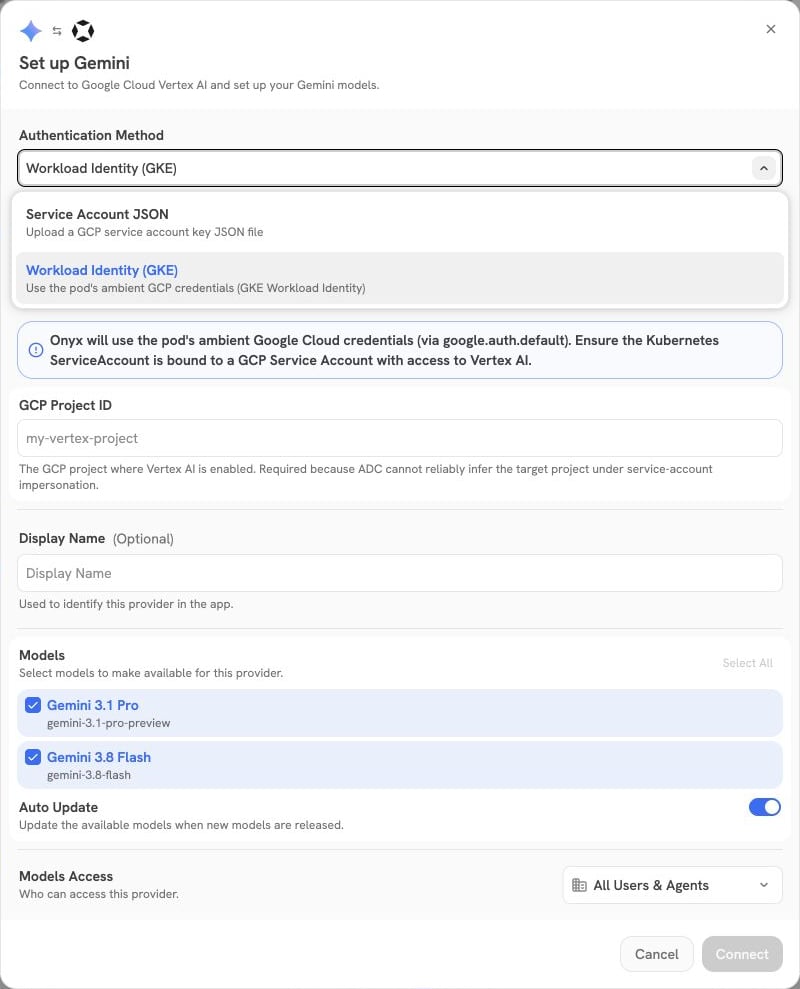 Enter the **GCP Project ID** where Vertex AI is enabled.
This is required because Application Default Credentials cannot reliably infer the target project under service
account impersonation.
Set **Google Cloud Region Name** to a [location supported by your
models](https://cloud.google.com/vertex-ai/generative-ai/docs/learn/locations). The default is `global`;
this is independent of your GKE cluster's location.
Enter the **GCP Project ID** where Vertex AI is enabled.
This is required because Application Default Credentials cannot reliably infer the target project under service
account impersonation.
Set **Google Cloud Region Name** to a [location supported by your
models](https://cloud.google.com/vertex-ai/generative-ai/docs/learn/locations). The default is `global`;
this is independent of your GKE cluster's location.
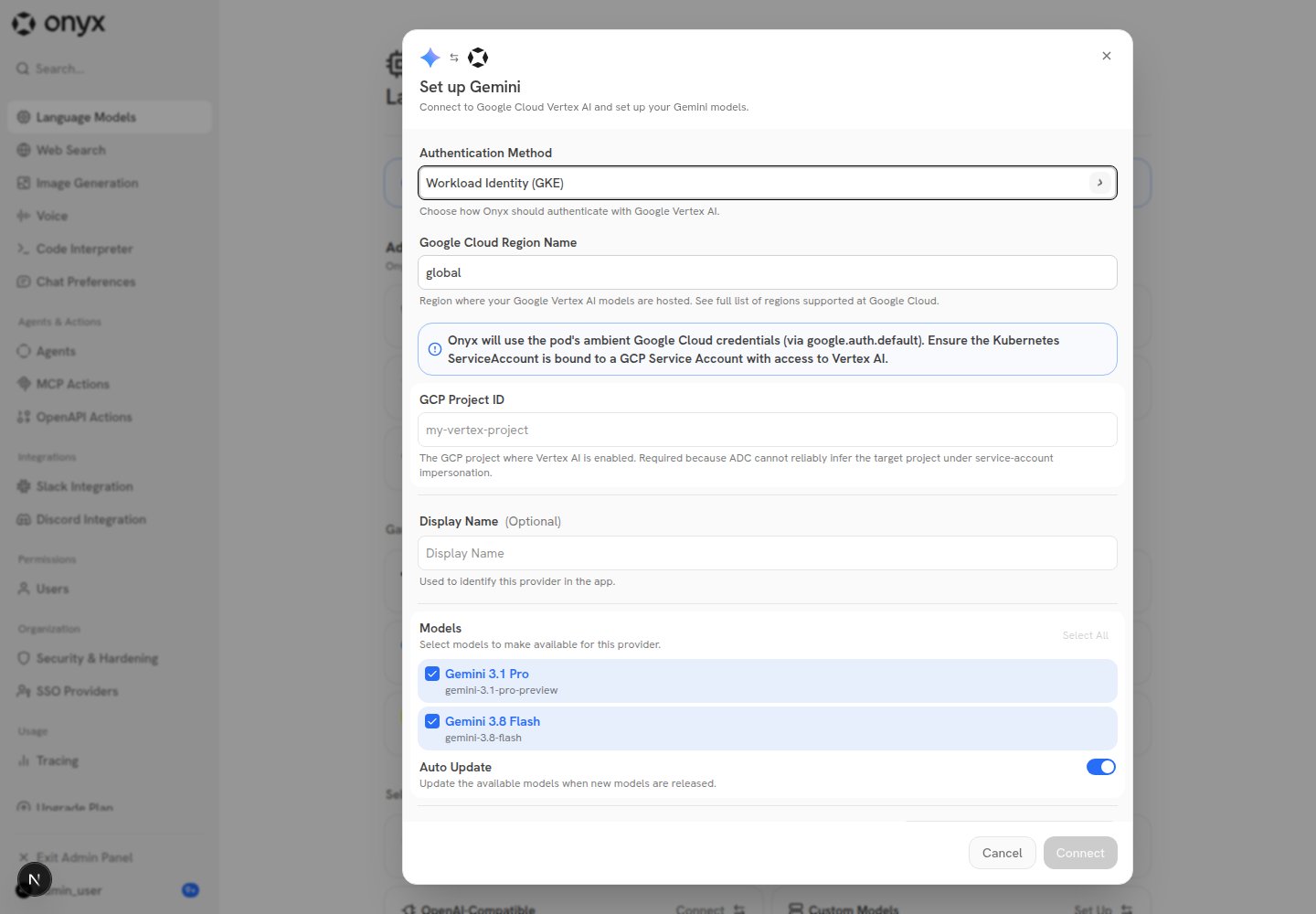 No credentials file is needed. Select your models and configure provider access below, then click **Connect**.
In the **Advanced Options**, you will see a list of all models available from this provider.
You may choose which models are visible to your users in Onyx.
Setting visible models is useful when a provider publishes multiple models and versions of the same model.
Lastly, decide whether the provider should be public to all users in Onyx.
If set to private,
the provider's models will be available to Admins and User Groups you explicitly assign the provider to.
Start a chat using one of this provider's models and send a message.
A successful response confirms that Onyx can obtain credentials and call Vertex AI.
If authentication fails, check the identity on the running API server pod and its node pool's metadata server.
For direct access, check the IAM grant to the Kubernetes principal. For service account impersonation,
check the `iam.gke.io/gcp-service-account` annotation and the `roles/iam.workloadIdentityUser` binding.
A permissions error can also mean that `roles/aiplatform.user` was granted in a different project from the **GCP
Project ID** in Onyx, or that the Vertex AI API is disabled there.
Allow a few minutes for new IAM grants to propagate before retrying.
## FAQ
### Does Onyx need to run on Google Cloud or GKE to use Vertex AI?
No. Vertex AI is accessed through Google Cloud APIs,
and Onyx can call those APIs from another cloud or an on-premises deployment using **Service Account JSON**,
with the required permissions and network access.
The GKE steps above apply to credentials supplied automatically to Onyx pods by the GKE metadata server.
Remotely accessing a GKE cluster with `kubectl` does not give an external Onyx deployment those pod credentials.
Onyx's **Workload Identity (GKE)** option uses Application Default Credentials under the hood.
Google also supports [Workload Identity Federation for workloads outside Google
Cloud](https://cloud.google.com/iam/docs/workload-identity-federation-with-other-clouds).
That requires a separate setup that makes credentials available to the Onyx API server and workers;
it is outside the scope of this GKE walkthrough.
### Can I use a Vertex AI API key instead of a service account?
No. Today,
Onyx's Vertex AI provider supports only **Service Account JSON** or **Workload Identity (GKE)** as authentication
methods — a standalone Vertex AI API key (Vertex Express Mode) is not accepted.
If you just want to authenticate with a plain API key,
you can instead add a **Custom** LLM provider using the `gemini` provider name,
which routes through the [Google AI Studio](https://aistudio.google.com/) Gemini Developer API using an API key.
See the [Custom Inference Provider](/admins/ai_models/custom_inference_provider) guide.
Google AI Studio is a separate product from Vertex AI, with different billing and data-handling terms.
AI Studio API keys are not interchangeable with Vertex AI credentials.
When configuring this alternative,
use the **Custom** provider type with the provider name set to `gemini` — not the generic **OpenAI-Compatible**
provider type pointed at Gemini's OpenAI-compatible endpoint.
Onyx appends a forced `/v1` suffix to the OpenAI-Compatible provider's base URL, which breaks that endpoint.
The forced `/v1` suffix does not apply to the `gemini` provider name, so it is unaffected.
This documentation is built and hosted on [Mintlify](https://mintlify.com), a developer documentation platform.
No credentials file is needed. Select your models and configure provider access below, then click **Connect**.
In the **Advanced Options**, you will see a list of all models available from this provider.
You may choose which models are visible to your users in Onyx.
Setting visible models is useful when a provider publishes multiple models and versions of the same model.
Lastly, decide whether the provider should be public to all users in Onyx.
If set to private,
the provider's models will be available to Admins and User Groups you explicitly assign the provider to.
Start a chat using one of this provider's models and send a message.
A successful response confirms that Onyx can obtain credentials and call Vertex AI.
If authentication fails, check the identity on the running API server pod and its node pool's metadata server.
For direct access, check the IAM grant to the Kubernetes principal. For service account impersonation,
check the `iam.gke.io/gcp-service-account` annotation and the `roles/iam.workloadIdentityUser` binding.
A permissions error can also mean that `roles/aiplatform.user` was granted in a different project from the **GCP
Project ID** in Onyx, or that the Vertex AI API is disabled there.
Allow a few minutes for new IAM grants to propagate before retrying.
## FAQ
### Does Onyx need to run on Google Cloud or GKE to use Vertex AI?
No. Vertex AI is accessed through Google Cloud APIs,
and Onyx can call those APIs from another cloud or an on-premises deployment using **Service Account JSON**,
with the required permissions and network access.
The GKE steps above apply to credentials supplied automatically to Onyx pods by the GKE metadata server.
Remotely accessing a GKE cluster with `kubectl` does not give an external Onyx deployment those pod credentials.
Onyx's **Workload Identity (GKE)** option uses Application Default Credentials under the hood.
Google also supports [Workload Identity Federation for workloads outside Google
Cloud](https://cloud.google.com/iam/docs/workload-identity-federation-with-other-clouds).
That requires a separate setup that makes credentials available to the Onyx API server and workers;
it is outside the scope of this GKE walkthrough.
### Can I use a Vertex AI API key instead of a service account?
No. Today,
Onyx's Vertex AI provider supports only **Service Account JSON** or **Workload Identity (GKE)** as authentication
methods — a standalone Vertex AI API key (Vertex Express Mode) is not accepted.
If you just want to authenticate with a plain API key,
you can instead add a **Custom** LLM provider using the `gemini` provider name,
which routes through the [Google AI Studio](https://aistudio.google.com/) Gemini Developer API using an API key.
See the [Custom Inference Provider](/admins/ai_models/custom_inference_provider) guide.
Google AI Studio is a separate product from Vertex AI, with different billing and data-handling terms.
AI Studio API keys are not interchangeable with Vertex AI credentials.
When configuring this alternative,
use the **Custom** provider type with the provider name set to `gemini` — not the generic **OpenAI-Compatible**
provider type pointed at Gemini's OpenAI-compatible endpoint.
Onyx appends a forced `/v1` suffix to the OpenAI-Compatible provider's base URL, which breaks that endpoint.
The forced `/v1` suffix does not apply to the `gemini` provider name, so it is unaffected.
This documentation is built and hosted on [Mintlify](https://mintlify.com), a developer documentation platform.