> ## Documentation Index
> Fetch the complete documentation index at: https://danswer-docs-versions-opensearch-example.mintlify.site/llms.txt
> Use this file to discover all available pages before exploring further.
# Confluence overview
> Index Confluence pages, comments, and attachments
The Confluence connector indexes pages that its connector account can view. It also indexes page comments, labels,
last editors, hierarchy, and attachments when you enable attachment processing. After the first full sync,
Onyx checks for updates every 30 minutes by default. You can change the refresh interval in the connector settings.
## Choose your deployment
| Deployment | Authentication | Wiki Base URL | Onyx setting |
| - | - | - | - |
| Confluence Cloud | Onyx Cloud OAuth, or an Atlassian API token | `https://your-domain.atlassian.net/wiki` | Enable **Is Cloud** |
| Confluence Data Center | Personal access token (PAT) | Your site root or context path | Disable **Is Cloud** |
| Confluence Server | Personal access token (PAT), available in 7.9 and later | Your site root or context path | Disable **Is Cloud** |
* Follow [Confluence Cloud setup](./confluence-cloud) for an Atlassian-hosted site.
* Follow [Confluence Data Center and Server setup](./confluence-data-center) for a self-managed site.
Atlassian ended support for Confluence Server on February 15, 2024.
Onyx still uses the Data Center integration path for Server,
but Atlassian recommends migration to Cloud or Data Center.
See Atlassian's [Server end-of-support notice](https://www.atlassian.com/licensing/server-end-of-support).
## Configure the connector in Onyx
First, complete the authentication steps in the guide for your deployment. Then open **Admin Panel > Connectors**,
select **Confluence**, and follow these steps.
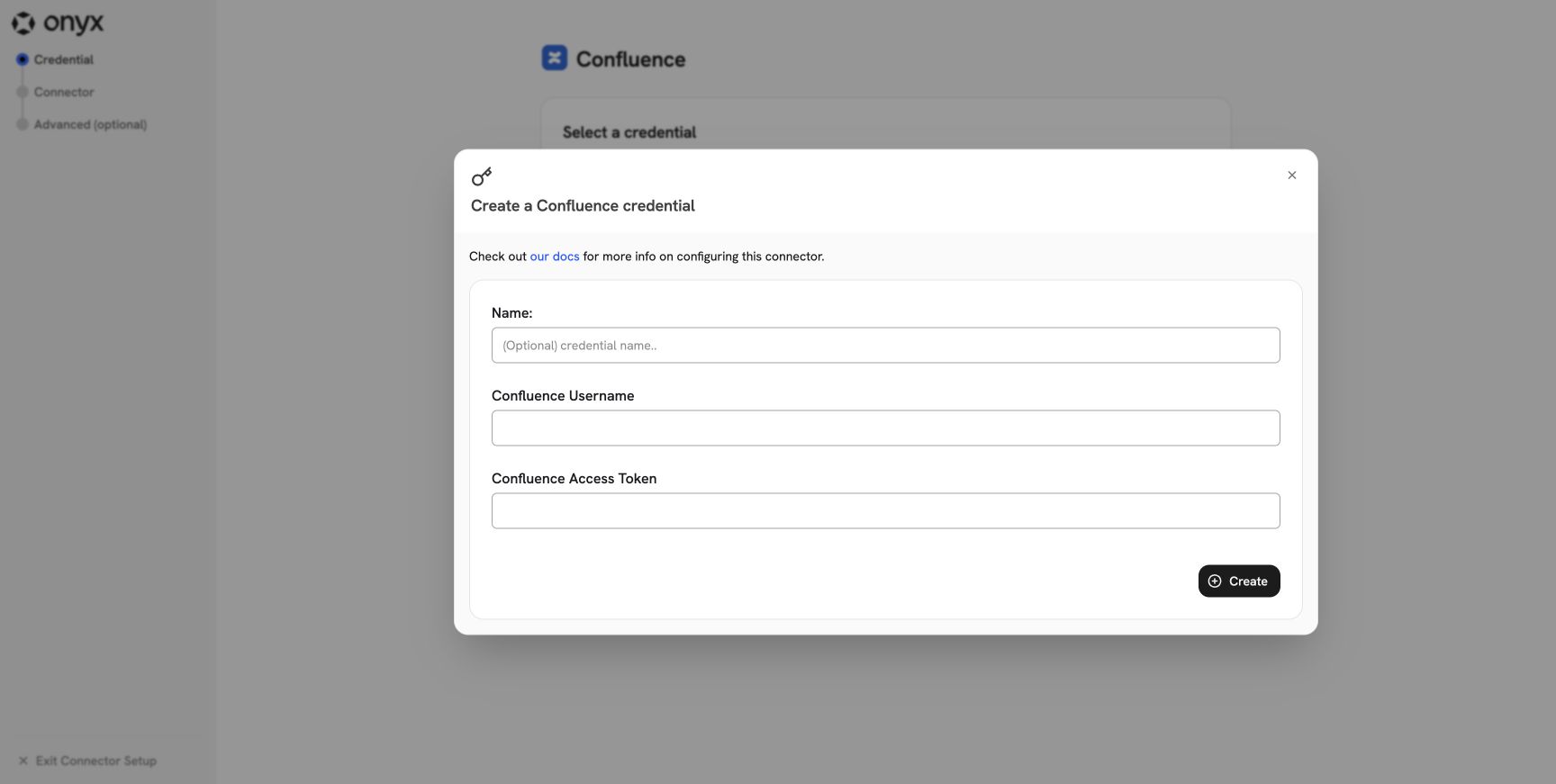
Select **Create New**. Enter a clear name, the connector account, and the token from your deployment guide.
* Cloud: enter the Atlassian account email and its API token.
* Data Center or Server: enter the PAT owner's username and the PAT. Onyx sends the PAT as a bearer token.
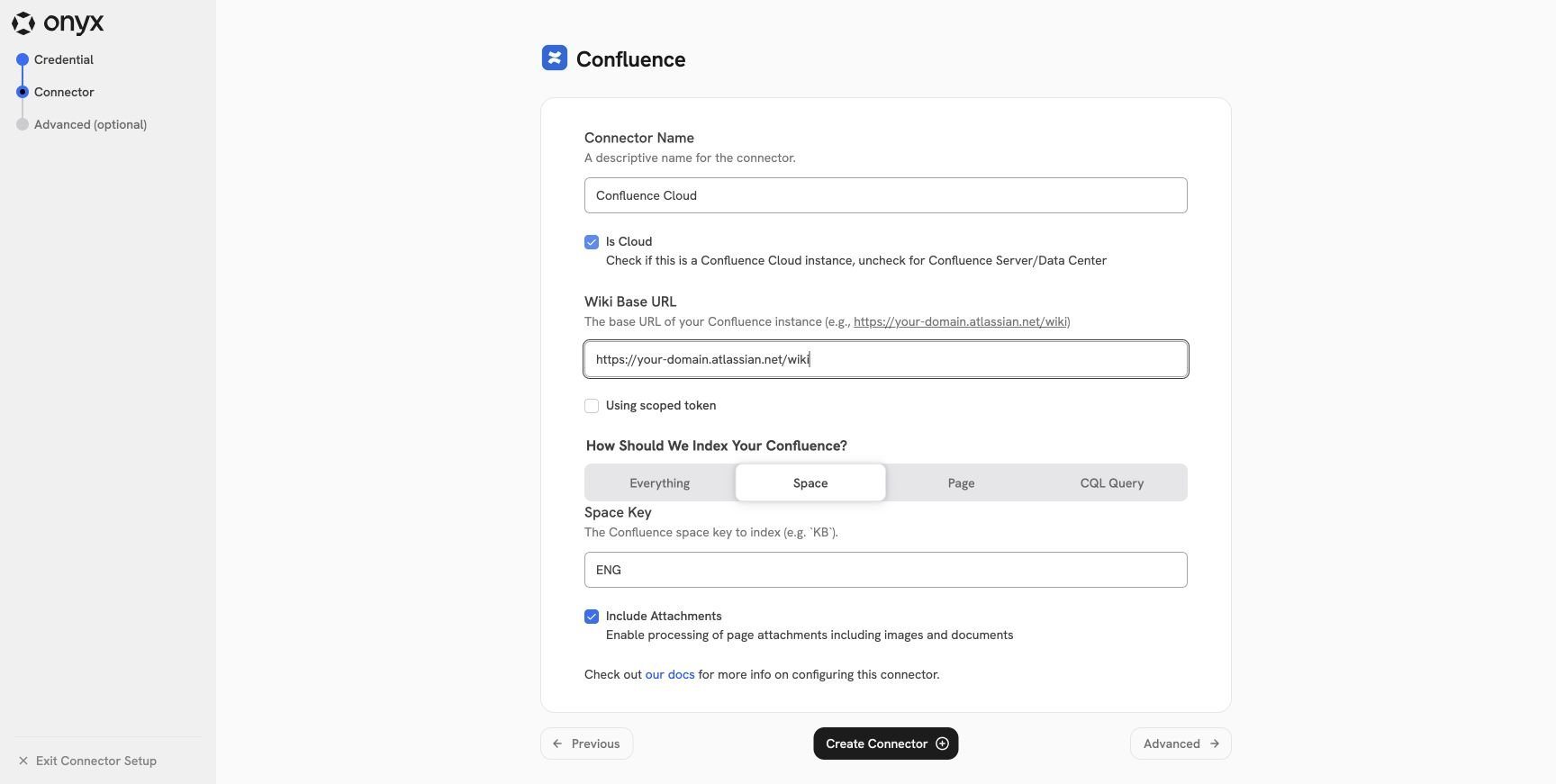
 Enter a connector name and configure the deployment fields:
* **Is Cloud**: Enable this only for Confluence Cloud.
* **Wiki Base URL**: For Cloud, include `/wiki`. For Data Center or Server, enter the site root or configured context
path. Do not add `/rest/api`.
* **Using scoped token**: Enable this only for a Confluence Cloud API token that you created with scopes. Leave it
disabled for an unscoped Cloud token and for Data Center or Server.
Enter a connector name and configure the deployment fields:
* **Is Cloud**: Enable this only for Confluence Cloud.
* **Wiki Base URL**: For Cloud, include `/wiki`. For Data Center or Server, enter the site root or configured context
path. Do not add `/rest/api`.
* **Using scoped token**: Enable this only for a Confluence Cloud API token that you created with scopes. Leave it
disabled for an unscoped Cloud token and for Data Center or Server.
 Choose one scope:
| Scope | Result |
| - | - |
| **Everything** | Index every page the connector account can view. |
| **Space** | Index one space by its key, such as `ENG` or `KB`. |
| **Page** | Index one page by numeric page ID. Enable **Index Recursively** to include its descendants. |
| **CQL Query** | Index pages returned by a custom Confluence Query Language query. |
A CQL query must use `type=page` as its only content-type filter. Do not add a `lastmodified` filter.
Onyx adds its own time filters during incremental sync. A filter in your query can conflict with them.
Onyx still retrieves comments and enabled attachments for the returned pages.
See Atlassian's [CQL
documentation](https://developer.atlassian.com/server/confluence/advanced-searching-using-cql/).
Keep **Include Attachments** enabled to extract supported document attachments from indexed pages.
Image attachment analysis also requires the Onyx image extraction and analysis setting.
Disable attachment processing when you want only page text and comments.
Select **Advanced** and choose an access type:
* **Public** makes every indexed document available to every Onyx user.
* **Private** limits every indexed document to the connector's assigned Onyx groups.
* **Sync Permissions** mirrors Confluence space permissions, page restrictions, and inherited ancestor restrictions.
Permission sync requires Onyx Enterprise Edition or Onyx Cloud.
It maps Confluence users to Onyx users by email and syncs Confluence groups.
Read the deployment guide before you enable it.
Select **Create Connector**. The connector validates the credential by reading at least one visible space.
Open the connector's status page and wait for the first indexing attempt to complete.
Then search for a known page in Onyx.
Open the result's source link and confirm that it points to the expected Confluence page.
## Permission sync behavior
Onyx applies the closest read restriction in this order:
* A page restriction.
* The closest restricted ancestor page.
* The page's space permissions.
Onyx maps users by email address. A missing, hidden, masked,
or different email address prevents a Confluence identity from matching an Onyx user.
Test at least one page with each restriction pattern that your site uses.
## Troubleshooting
| Symptom | Check |
| - | - |
| No spaces found | Confirm that the account can open at least one space, the base URL is correct, and **Is Cloud** matches the deployment. |
| Cloud returns `401` | Replace an expired or revoked token. Confirm that **Using scoped token** matches the token type. |
| Cloud returns `403` | Grant the account access to the requested space or page. For a scoped token, add the required read scopes. |
| Data Center or Server returns `401` | Confirm that the PAT is current and that the base URL includes any configured context path. |
| Pages are missing | Sign in as the connector account and open the missing page. Check the space, page, and ancestor restrictions. |
| Permission sync misses users | Confirm that Confluence exposes each user's email and that the same email belongs to an Onyx user. |
| A CQL connector stops updating | Remove your `lastmodified` filter. Onyx adds time filters during incremental sync. Use `type=page` as the only content-type filter. |
This documentation is built and hosted on [Mintlify](https://mintlify.com), a developer documentation platform.
Choose one scope:
| Scope | Result |
| - | - |
| **Everything** | Index every page the connector account can view. |
| **Space** | Index one space by its key, such as `ENG` or `KB`. |
| **Page** | Index one page by numeric page ID. Enable **Index Recursively** to include its descendants. |
| **CQL Query** | Index pages returned by a custom Confluence Query Language query. |
A CQL query must use `type=page` as its only content-type filter. Do not add a `lastmodified` filter.
Onyx adds its own time filters during incremental sync. A filter in your query can conflict with them.
Onyx still retrieves comments and enabled attachments for the returned pages.
See Atlassian's [CQL
documentation](https://developer.atlassian.com/server/confluence/advanced-searching-using-cql/).
Keep **Include Attachments** enabled to extract supported document attachments from indexed pages.
Image attachment analysis also requires the Onyx image extraction and analysis setting.
Disable attachment processing when you want only page text and comments.
Select **Advanced** and choose an access type:
* **Public** makes every indexed document available to every Onyx user.
* **Private** limits every indexed document to the connector's assigned Onyx groups.
* **Sync Permissions** mirrors Confluence space permissions, page restrictions, and inherited ancestor restrictions.
Permission sync requires Onyx Enterprise Edition or Onyx Cloud.
It maps Confluence users to Onyx users by email and syncs Confluence groups.
Read the deployment guide before you enable it.
Select **Create Connector**. The connector validates the credential by reading at least one visible space.
Open the connector's status page and wait for the first indexing attempt to complete.
Then search for a known page in Onyx.
Open the result's source link and confirm that it points to the expected Confluence page.
## Permission sync behavior
Onyx applies the closest read restriction in this order:
* A page restriction.
* The closest restricted ancestor page.
* The page's space permissions.
Onyx maps users by email address. A missing, hidden, masked,
or different email address prevents a Confluence identity from matching an Onyx user.
Test at least one page with each restriction pattern that your site uses.
## Troubleshooting
| Symptom | Check |
| - | - |
| No spaces found | Confirm that the account can open at least one space, the base URL is correct, and **Is Cloud** matches the deployment. |
| Cloud returns `401` | Replace an expired or revoked token. Confirm that **Using scoped token** matches the token type. |
| Cloud returns `403` | Grant the account access to the requested space or page. For a scoped token, add the required read scopes. |
| Data Center or Server returns `401` | Confirm that the PAT is current and that the base URL includes any configured context path. |
| Pages are missing | Sign in as the connector account and open the missing page. Check the space, page, and ancestor restrictions. |
| Permission sync misses users | Confirm that Confluence exposes each user's email and that the same email belongs to an Onyx user. |
| A CQL connector stops updating | Remove your `lastmodified` filter. Onyx adds time filters during incremental sync. Use `type=page` as the only content-type filter. |
This documentation is built and hosted on [Mintlify](https://mintlify.com), a developer documentation platform.