

What gets indexed
Onyx creates one document for each call that has a transcript in Gong. A document holds:- The call’s title, which becomes the document title
- The call’s description, when the call has one
- The transcript, one paragraph per turn, each labeled with the speaker’s name and email address as Gong lists them. A speaker Gong cannot identify is labeled Unknown.
What is not indexed
- Calls that Gong has not transcribed
- The audio and video recordings themselves
- Gong’s own summaries, highlights, trackers, and points of interest
- Comments, notes, and scorecards left on a call
- Attendees as metadata. The parties on a call are used only to name the speakers in the transcript.
How it works
Onyx asks Gong for the transcripts of calls that started since its last run, and it reads one page of transcripts at a time. The first run reads every call in the account, or in the selected workspaces, unless a start date is set.- Refresh. The default refresh interval is 30 minutes. Each refresh also rereads the day before the last run, so a call that ended late or that Gong transcribed late is still picked up.
- Calls Gong is still processing. Gong sometimes lists a transcript before it serves the call’s details. Onyx keeps such a call and retries it over the next 15 minutes or so. A call that never resolves is reported as a failed document for that run.
- Rate limits. Gong allows 3 API calls per second and 10,000 per day for the whole company. Onyx spaces its requests to stay under the per-second limit and waits as long as Gong asks when it is throttled. A first index of a large account shares the daily allowance with your other Gong integrations.
- Deleted calls. A call deleted in Gong stays in Onyx until a pruning run removes it. A prune rereads every transcript the connector covers, so it spends API allowance like a first index. Keep the pruning interval long on a large account.
Before you begin
You need:- An Onyx administrator account.
- A Gong user with the Technical Administrator role. Only a technical administrator can create an API key. API keys are available on every Gong plan.
- For an account with data residency outside the US, your region’s API address. Gong shows it on the same page where you create the key.
Create a Gong API key
1
Open the Gong admin settings
Sign in to Gong as a technical administrator. In the left sidebar, select Admin center at the very bottom.
Expand the sidebar first if it is collapsed. Only technical administrators see this entry.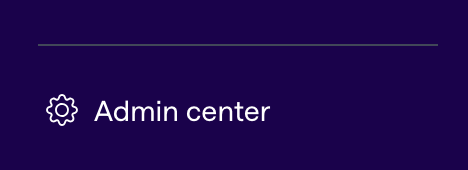
2
Open the API settings
Find the Ecosystem section and select API.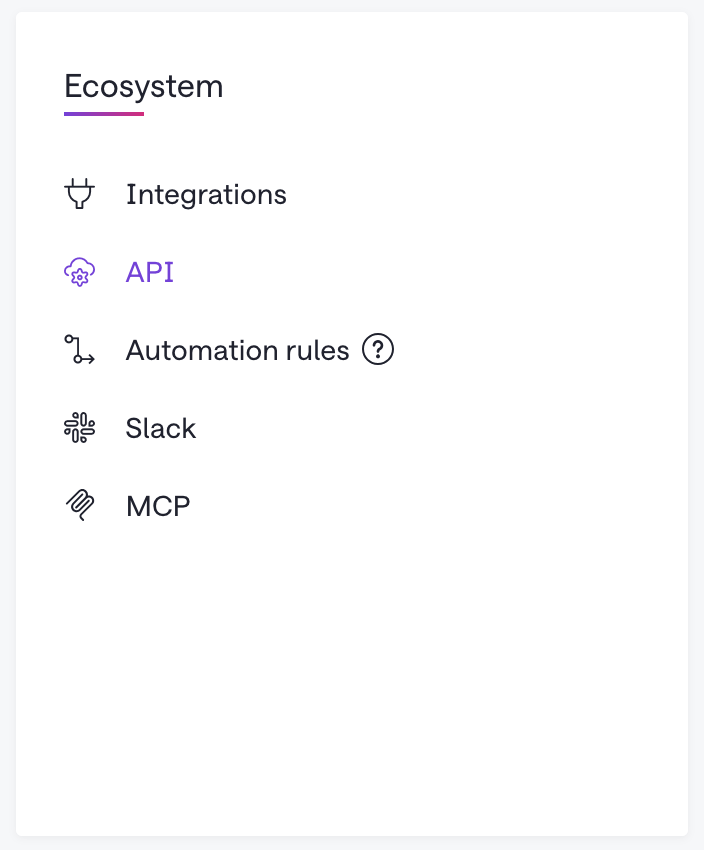
3
Create the key
Click ”+ Get API Key” and enter the required fields in the form.Once you’re done filling out the keys, click the “Get API key” button.
The dialog box will show you the created access key and secret.
4
Copy the key and secret
Gong shows the access key and the secret just once. Copy both before you close the dialog.
Gong does not show the secret again; if you lose it, create a new key.
5
Note your API address, outside the US
On the same API page, Gong shows the base URL for your company’s API calls. The default is
https://api.gong.io.
An account with data residency in another region uses a host such as https://<region>.api.gong.io.
Note it if it differs from the default.Configure the connector in Onyx
1
Open the Gong connector
In Onyx, go to Admin Panel → Add Connector and select Gong.
2
Create a credential
Select Create New and enter:
- Gong Access Key and Gong Access Key Secret: the pair you copied from Gong.
- Gong API Base URL: leave it empty for
https://api.gong.io. For an account outside the US, enter your region’s host, such ashttps://eu.api.gong.io.
api.gong.io and hosts under it, over HTTPS.
It adds https:// when the scheme is missing and drops a trailing slash.3
Choose the workspaces
Name the connector. In Workspaces, list the workspaces to index, one per entry,
or leave the list empty to index every workspace in the account.Each entry is a workspace’s ID or its exact name as shown in Gong. The name is case sensitive.
An entry that matches nothing is skipped,
and the connector fails with No valid Gong workspaces found when no entry matches.
4
Choose the access type
Public shows every indexed call to all Onyx users. Private limits them to selected Onyx user groups.
See Document Access Controls for what each means.Auto Sync Permissions is not available for Gong.
5
Create and verify
Select Create Connector. Onyx starts indexing.Open Admin Panel → Existing Connectors, select the connector,
and check that the first indexing attempt finishes with about the number of calls you expect.
A large account takes a while, since Gong serves transcripts a page at a time under its rate limits.
Limit how far back Onyx reads
By default the first index reads every call in the account. On a self-hosted deployment you can set a date before which Onyx does not look. Add this variable to your Onyx.env file, then restart Onyx.
See Configuration for where that file lives in your deployment.
.env