

How it works
Every refresh re-crawls the whole site; there is no incremental mode.
Onyx deliberately ignores the
Last-Modified header,
because CDN and server-rendered origins advance it on every fetch even when the page has not changed.
Instead it compares the text of each page it fetched, so an unchanged page costs a fetch but is not re-indexed.
Because a full crawl is expensive, this connector refreshes once every 24 hours rather than every 10 minutes.
Before you begin
You need:- A URL the Onyx server itself can reach
- Pages that do not require signing in
- An Onyx administrator account
The connector cannot sign in, send a cookie, or answer a login form.
If the content you want sits behind authentication,
index the system that holds it with its own connector instead of crawling its web front end.
Configure Onyx
1
Open the Web connector
In Onyx, go to Admin Panel → Add Connector and select Web.
2
Name the connector and enter the base URL
Give the connector a descriptive Connector Name. In Base URL, enter the address to start from,
for example
https://docs.onyx.app/. If you leave off the scheme, Onyx adds https://.3
Choose the scrape method
Pick how Onyx finds pages: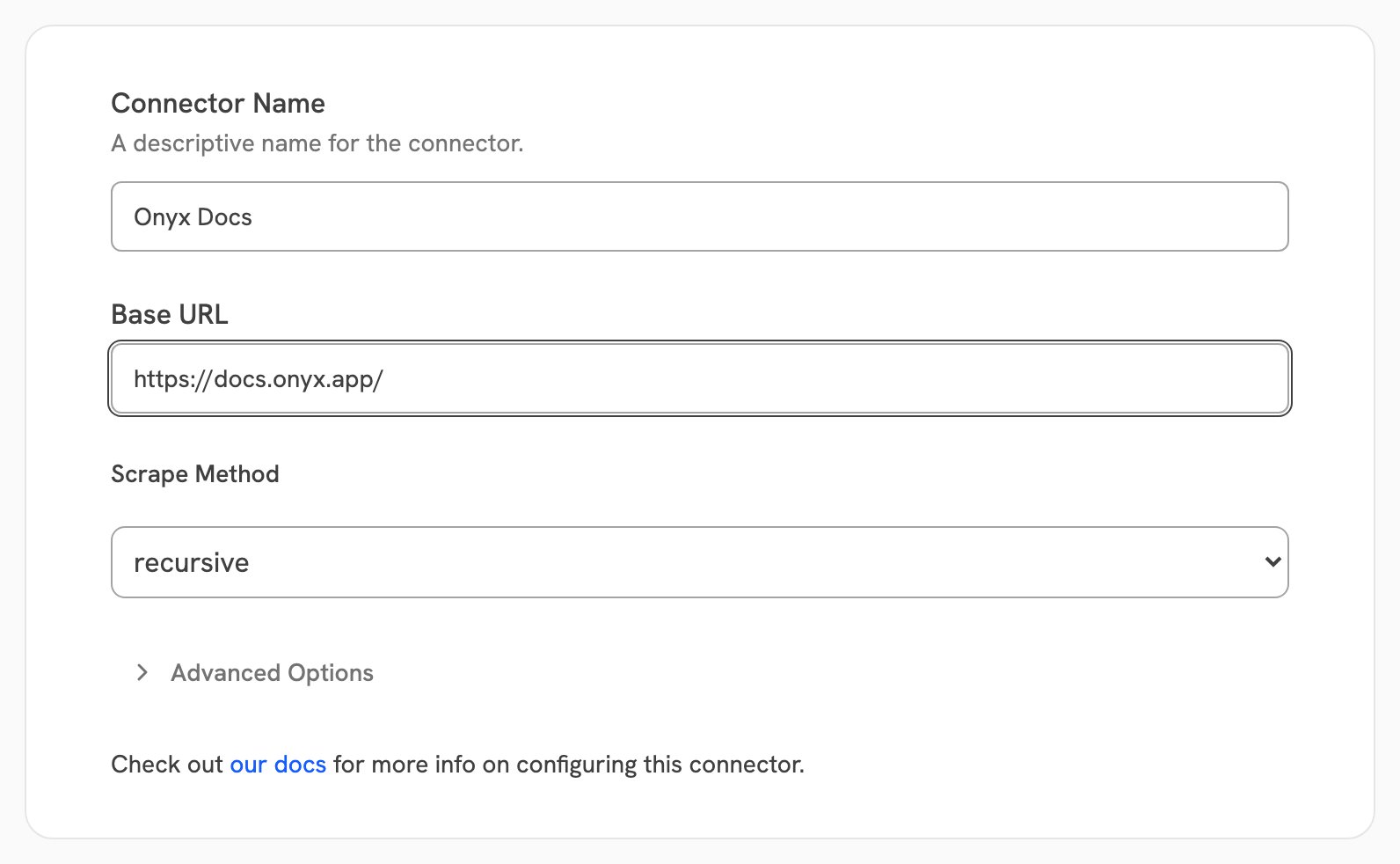
- recursive: start at the base URL and follow every in-scope link. Use this for a whole site or section.
- single: index the base URL only, and follow nothing.
- sitemap: read a
sitemap.xmland index every URL listed in it. If the address you give is not a sitemap, Onyx looks for one on that site.
4
Choose the access type
Public makes the indexed pages visible to every Onyx user.
Private limits the connector to selected Onyx user groups, and is a paid feature:
the Business and Enterprise tiers on Onyx Cloud, and the Enterprise Edition when self-hosted.See Document Access Controls
for what each access type means and which connectors support permission syncing.
5
Connect and verify
Select Create Connector. Then open Admin Panel → Existing Connectors, select the connector,
and confirm its first indexing attempt completes with the page count you expect.
With single, Onyx fetches the page while you save the connector,
so a wrong address or a blocked page is reported straight away.
With recursive and sitemap only the address itself is checked when you save.
Everything else surfaces on the first indexing attempt.
Advanced settings
Select Advanced Options on the connector form to reach both:
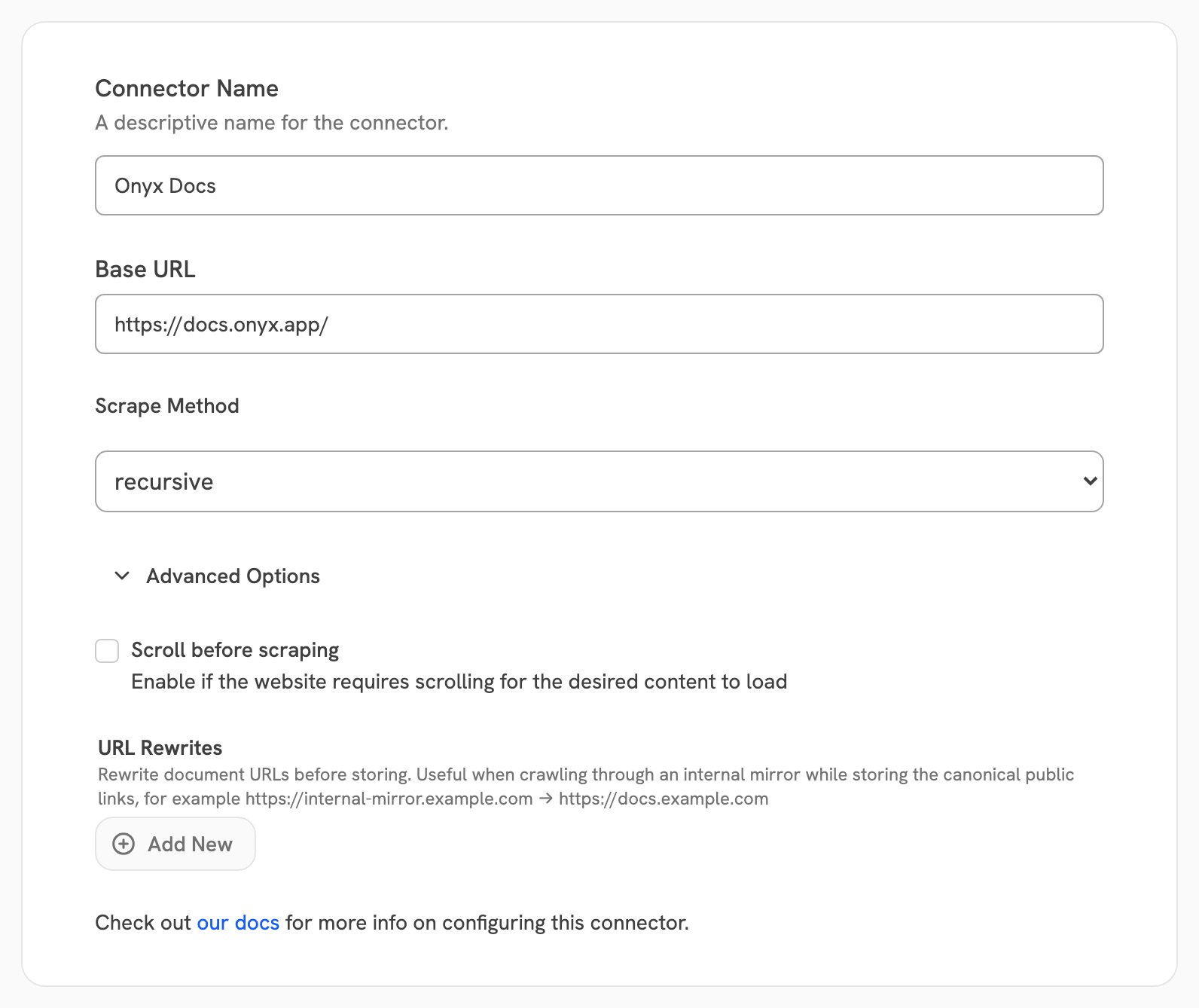
Crawl scope
In recursive mode, Onyx follows a link only when it stays on the same site and under the same path as the base URL. A leadingwww. is ignored when comparing sites.
This is the most common reason a recursive crawl indexes fewer pages than expected.
A site whose sections live on separate subdomains needs one connector per subdomain.
A site whose pages are only reachable from a search box, and never linked, needs the sitemap method instead.
URL rewrites
A rewrite replaces the start of a document’s stored address. Onyx still fetches the original address — only the link saved on the document changes, which is the link a user follows from a citation. Use it when Onyx reaches a site by an address your users do not use, for example an internal gateway:
The first matching rule wins. If two crawled pages rewrite to the same address,
Onyx keeps the first and skips the second, because the two would otherwise overwrite each other in the index.
Crawling an internal site
Self-hosted only. By default Onyx refuses to crawl private or internal addresses, and a connector pointed at one fails withNon-global IP address detected.
To allow it,
an admin sets SSRF Protection to Validate LLM Requests or lower on the Security &
Hardening page. At that level,
connectors an admin configured may reach private addresses, while fetches started by the LLM stay validated.
Onyx Cloud cannot reach addresses inside your network at any setting.
Limits
The connector has no file-size cap, unlike the SharePoint and Google Drive connectors. A linked PDF is downloaded whole. The limits that do apply are times and counts:
A slow page that exceeds the load timeout on all 3 attempts is dropped from the crawl and recorded as an error,
rather than indexed with partial content.