

Choose your deployment
- Follow Confluence Cloud setup for an Atlassian-hosted site.
- Follow Confluence Data Center and Server setup for a self-managed site.
Configure the connector in Onyx
First, complete the authentication steps in the guide for your deployment. Then open Admin Panel > Connectors, select Confluence, and follow these steps.1
Add the credential
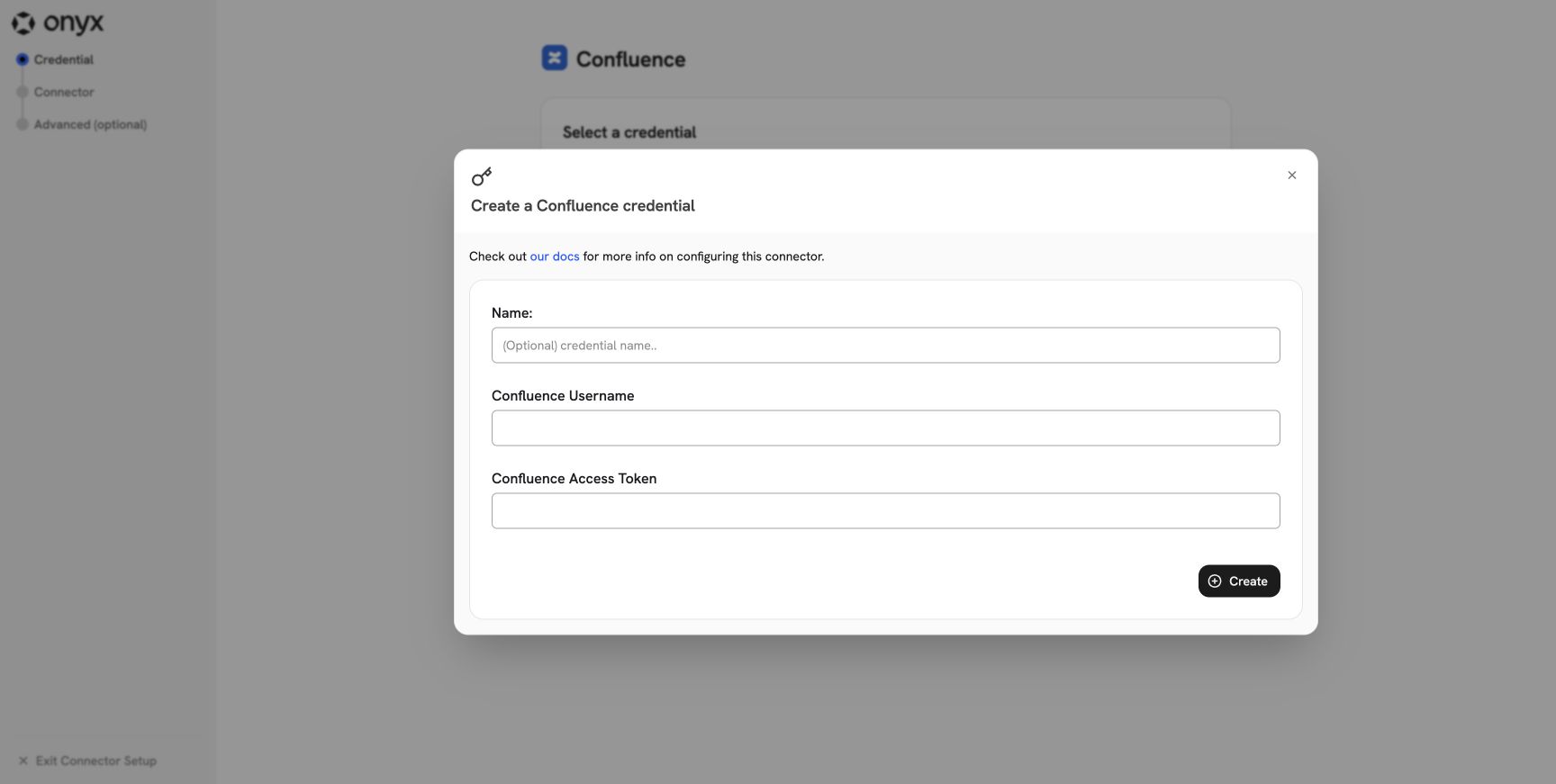
Select Create New. Enter a clear name, the connector account, and the token from your deployment guide.
- Cloud: enter the Atlassian account email and its API token.
-
Data Center or Server: enter the PAT owner’s username and the PAT. Onyx sends the PAT as a bearer token.
2
Set the deployment and URL
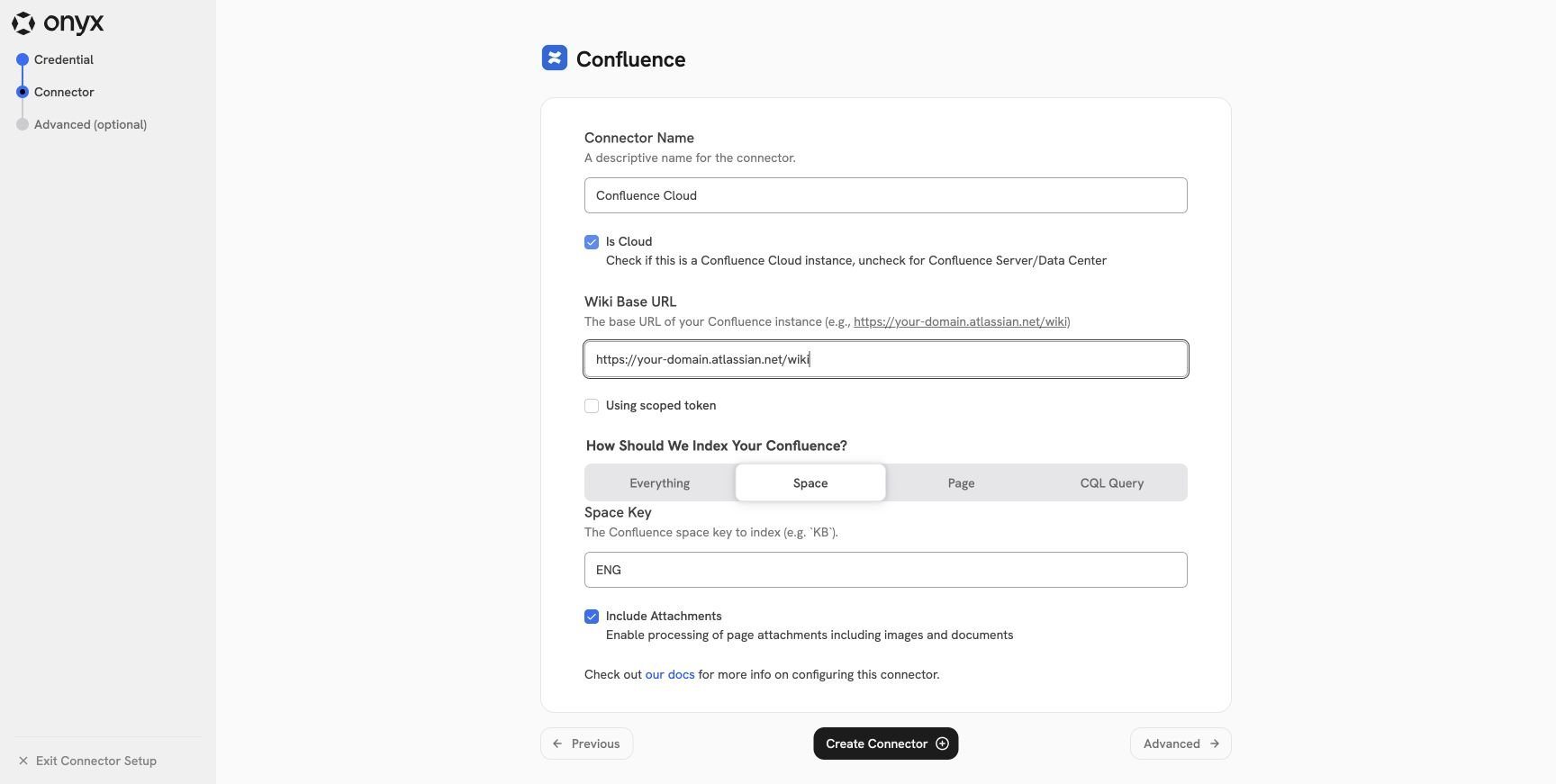
Enter a connector name and configure the deployment fields:
- Is Cloud: Enable this only for Confluence Cloud.
-
Wiki Base URL: For Cloud, include
/wiki. For Data Center or Server, enter the site root or configured context path. Do not add/rest/api. -
Using scoped token: Enable this only for a Confluence Cloud API token that you created with scopes. Leave it
disabled for an unscoped Cloud token and for Data Center or Server.
3
Choose what to index
Choose one scope:
A CQL query must use
type=page as its only content-type filter. Do not add a lastmodified filter.
Onyx adds its own time filters during incremental sync. A filter in your query can conflict with them.
Onyx still retrieves comments and enabled attachments for the returned pages.
See Atlassian’s CQL
documentation.4
Choose attachment processing
Keep Include Attachments enabled to extract supported document attachments from indexed pages.
Image attachment analysis also requires the Onyx image extraction and analysis setting.
Disable attachment processing when you want only page text and comments.
5
Choose access controls
Select Advanced and choose an access type:
- Public makes every indexed document available to every Onyx user.
- Private limits every indexed document to the connector’s assigned Onyx groups.
- Sync Permissions mirrors Confluence space permissions, page restrictions, and inherited ancestor restrictions.
6
Create and verify
Select Create Connector. The connector validates the credential by reading at least one visible space.Open the connector’s status page and wait for the first indexing attempt to complete.
Then search for a known page in Onyx.
Open the result’s source link and confirm that it points to the expected Confluence page.
Permission sync behavior
Onyx applies the closest read restriction in this order:- A page restriction.
- The closest restricted ancestor page.
- The page’s space permissions.